How to Generate E-Certificate from Excel Sheet
If you already have a list of participants in Excel, CertFusion makes it simple to turn that spreadsheet into certificates — without manual copy-pasting.
Follow this step-by-step guide on how to generate e-certificate from Excel sheet using CertFusion.
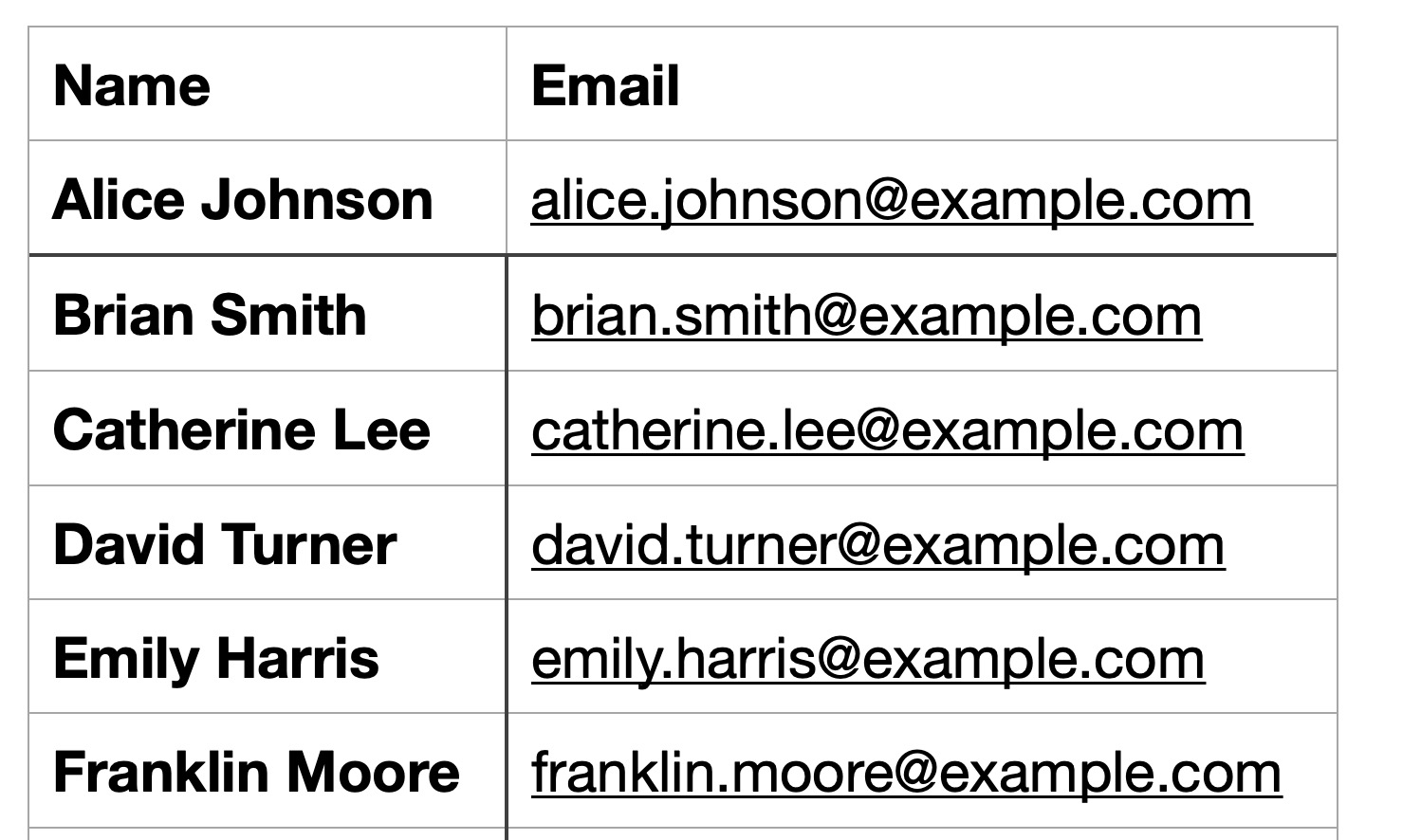
Step 1: Prepare Your Excel Sheet
Make sure your Excel sheet has:
- Name – the participant’s full name (required).
- Email – where the certificate will be sent (required).
- Optional Columns – such as course name, completion date, hours, instructor, etc.
Step 2: Create or Select a Certificate Template
-
Go to Certificate Templates in your CertFusion dashboard.
-
Either:
- Select an existing template, or Click Create and design a new one using the drag-and-drop editor.

-
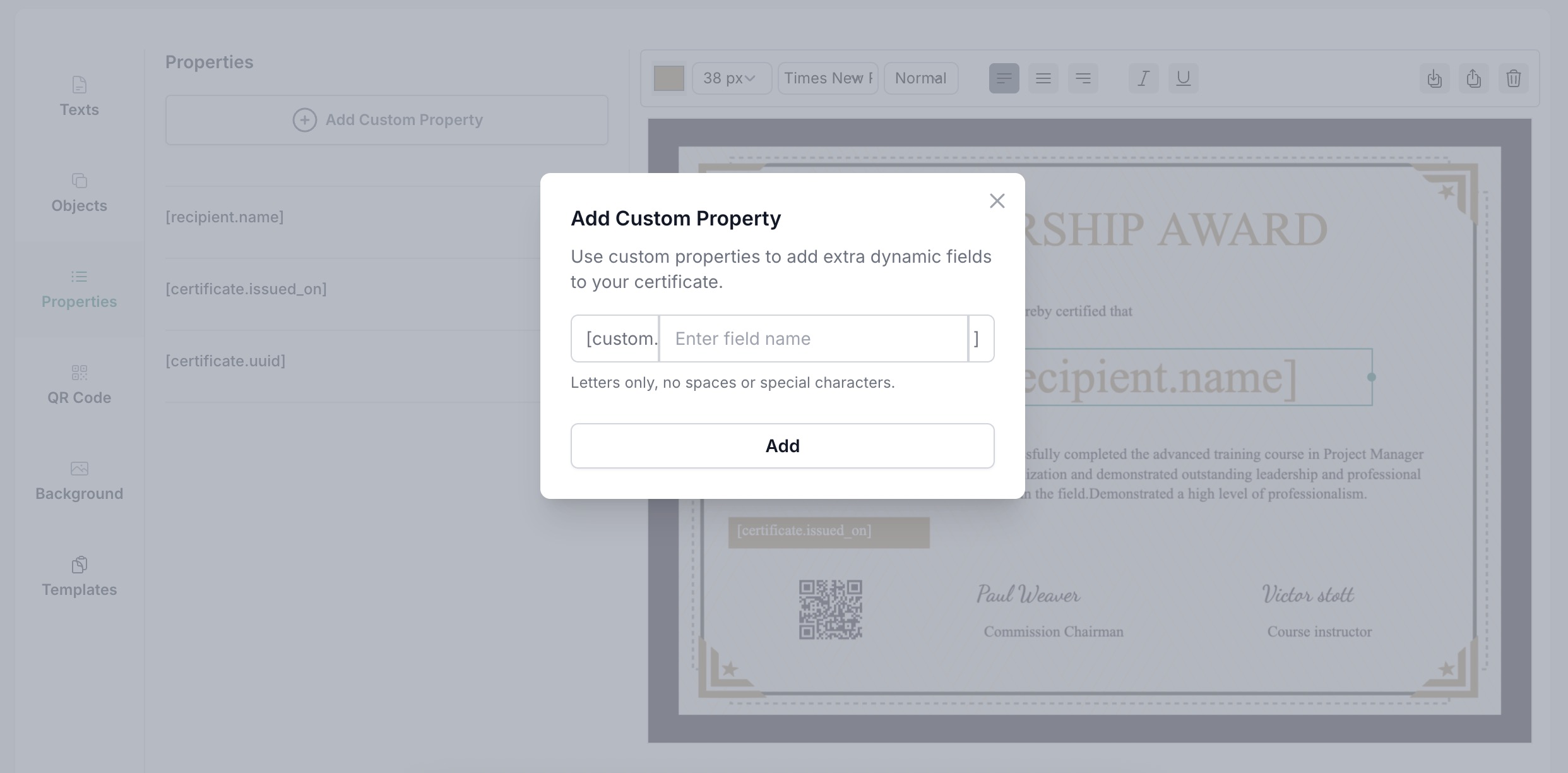
Add dynamic fields to personalize your certificates. CertFusion supports:
- Recipient Name – pulled from your Excel sheet.
- Issued Date – automatically filled when certificates are generated.
- Certificate UUID – a unique ID for each certificate, used for verification.

-
(Optional) Add Custom Fields to include other data from your Excel sheet (e.g. course title, instructor, training hours).
Step 3: Upload Your Excel Sheet to CertFusion
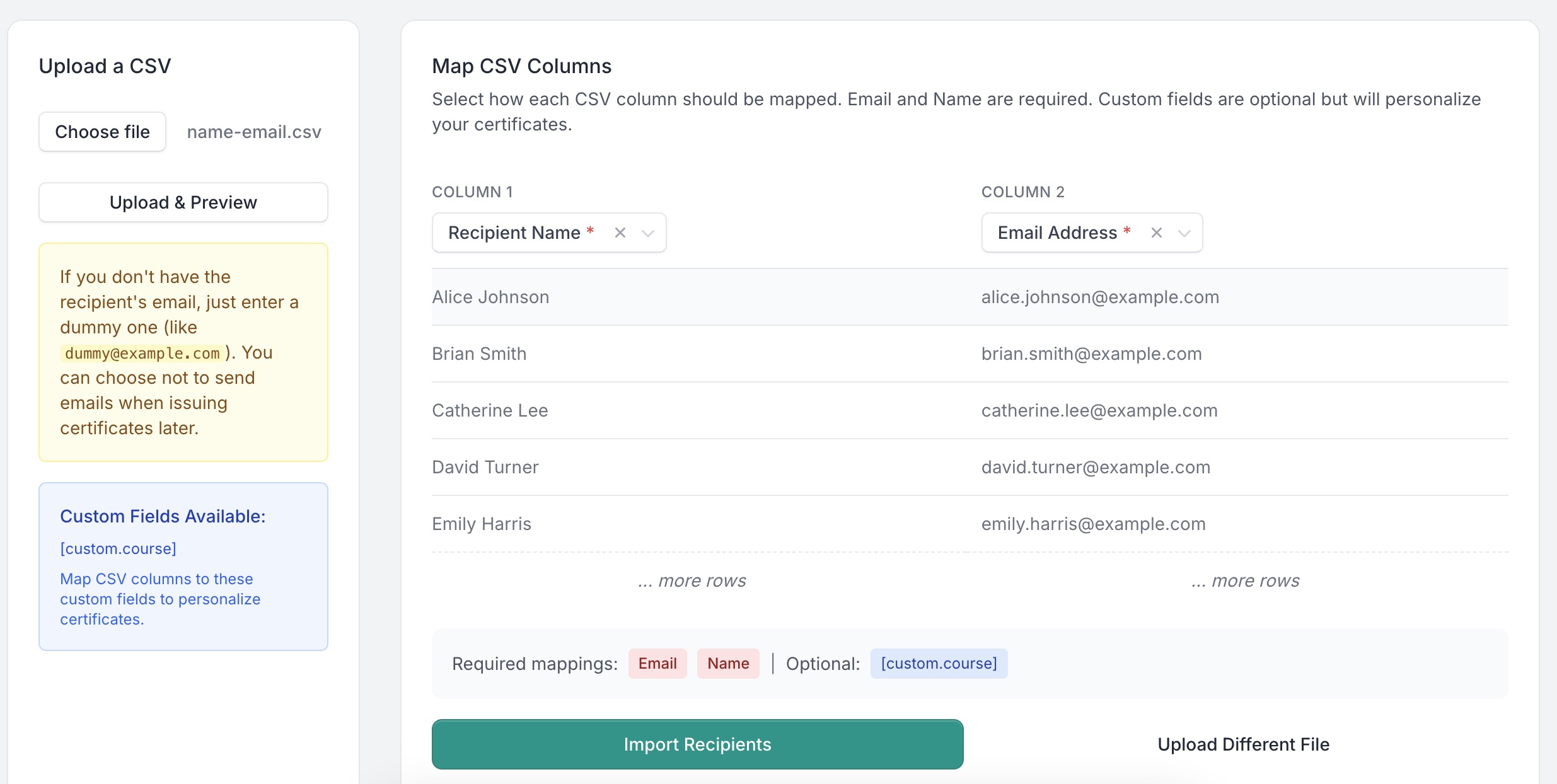
- Navigate to Recipients.
- Click Import CSV.
- Upload your CSV file.
- Map the columns in your file to the correct fields in CertFusion (e.g., map “Name” → “Recipient Name”).
- Review the preview to make sure everything matches.
- Click Import Recipients to import the csv content.
Step 4: Issue Certificates
Once participants are imported:
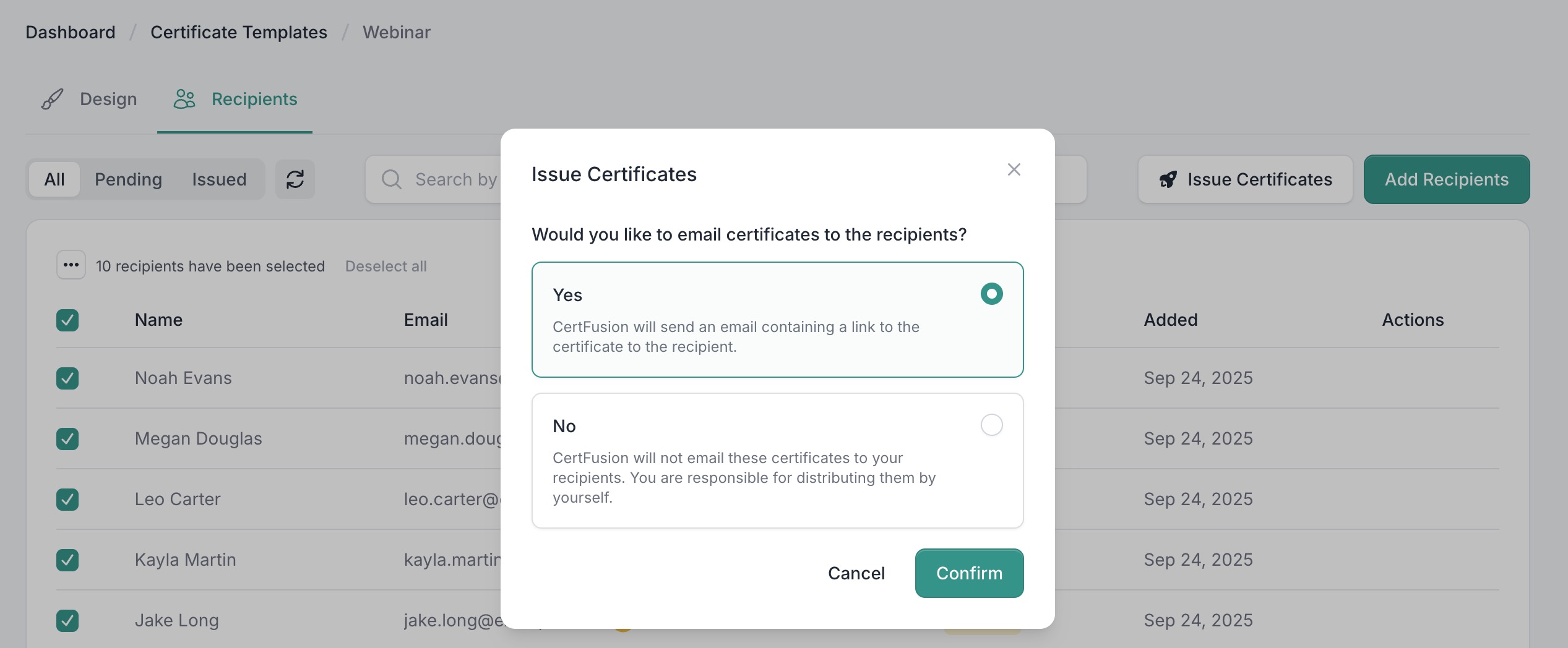
- Select the participants you want to issue certificates to.
- Click Issue Certificates.
CertFusion will generate a personalized certificate for each participant and email them automatically.
Step 5: Participants Receive Their Certificates
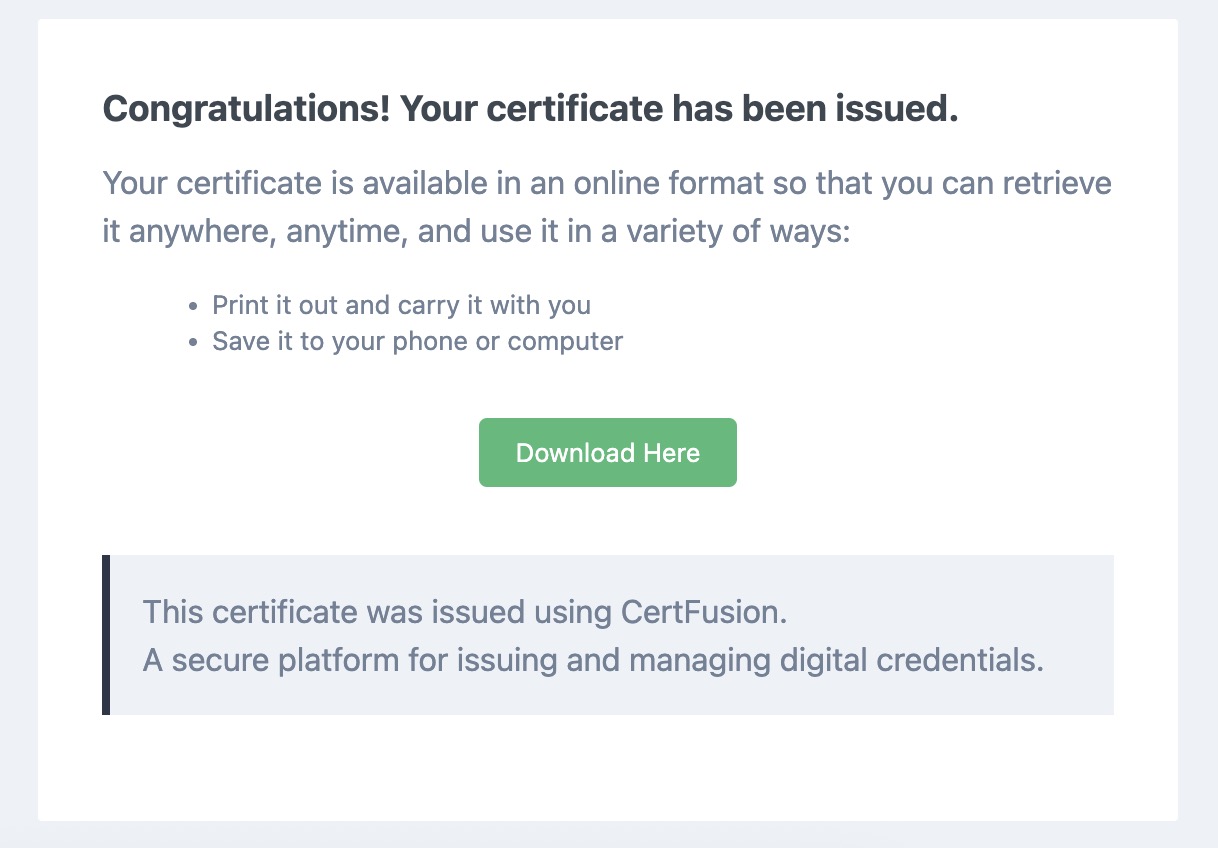
Each participant will get an email containing:
- A unique URL to view their certificate online.
- Options to download the PDF or verify authenticity on your hosted verification page.
Why Use CertFusion for Excel-Based Certificates
- Quick Upload: Turn a spreadsheet into certificates in minutes.
- Built-in Dynamic Fields: Automatically includes recipient name, issued date, and a unique certificate ID.
- Customizable: Map any additional columns to your own custom fields.
- Scalable: Works for 10 or 10,000 rows with no manual effort.
Next Steps
Now you know how to generate e-certificate from Excel sheet with CertFusion.
📌 Tip: Use clear, consistent column headers to make field mapping quick and accurate.
👉 Log in to CertFusion and upload your first sheet today to generate certificates in just a few clicks.
Table of Contents
Related Articles
Discover more insights and stories that might interest you