
Luma Integration Guide
Connect your Luma calendar to CertFusion and issue certificates to your event guests in a few clicks. This guide walks you through connecting the integration, importing guests from an event, and sending out certificates.
1. How to Connect Your Luma Calendar
- In Luma, open your calendar and go to Settings → Developer to create an API key. API access requires a Luma Plus subscription, and each key is scoped to a single calendar.
- Navigate to the Manage Integrations page in your CertFusion dashboard.
- Click Connect next to Luma in the integrations list.
- Paste your API key into the modal that appears and click Connect. CertFusion verifies it against Luma and shows a success message once connected.
CertFusion only accesses the event and guest data required for certificate generation. Your API key is securely encrypted and stored.
2. How to Import Event Guests
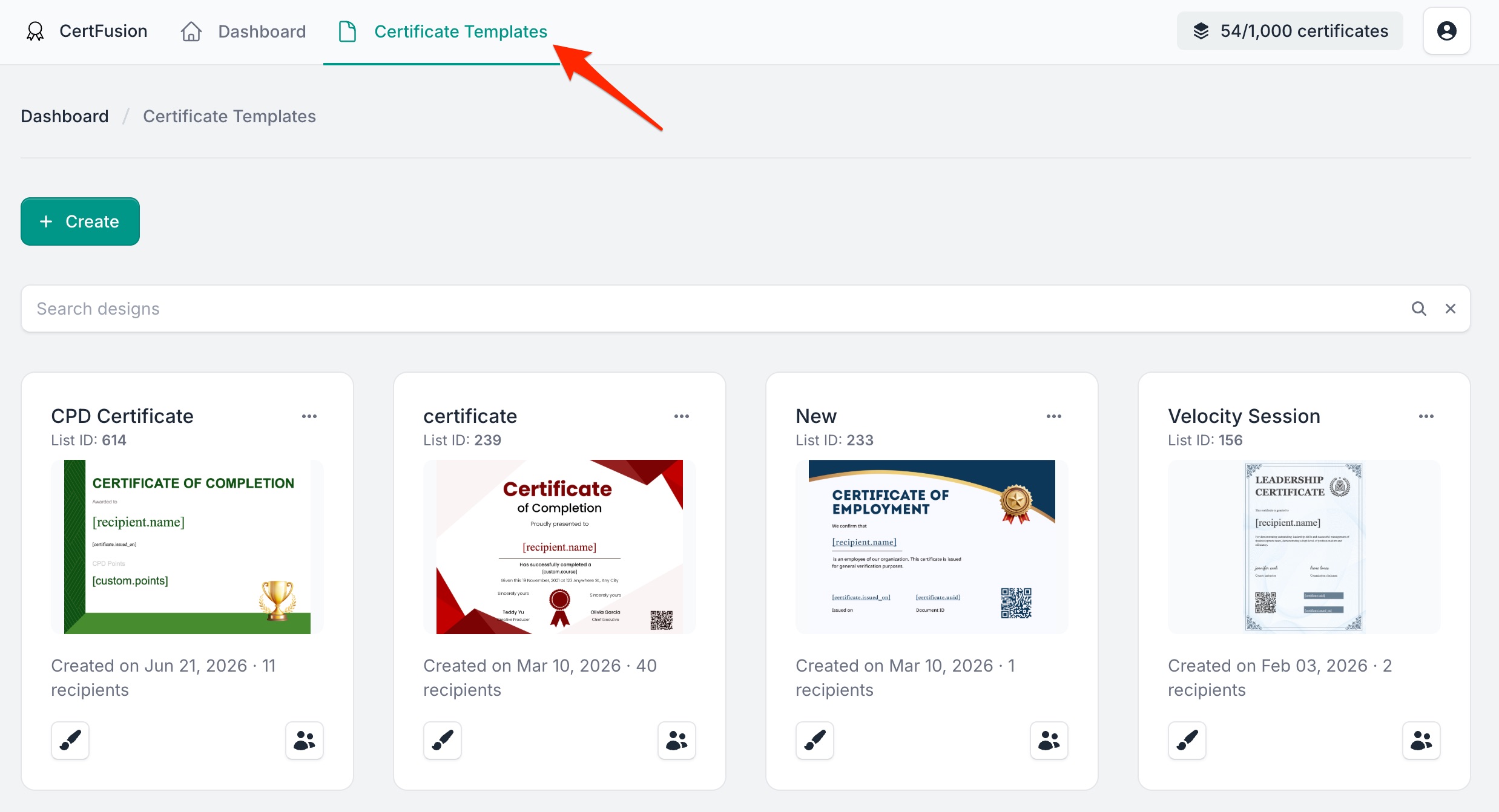
- Go to your Certificate Templates dashboard on CertFusion.
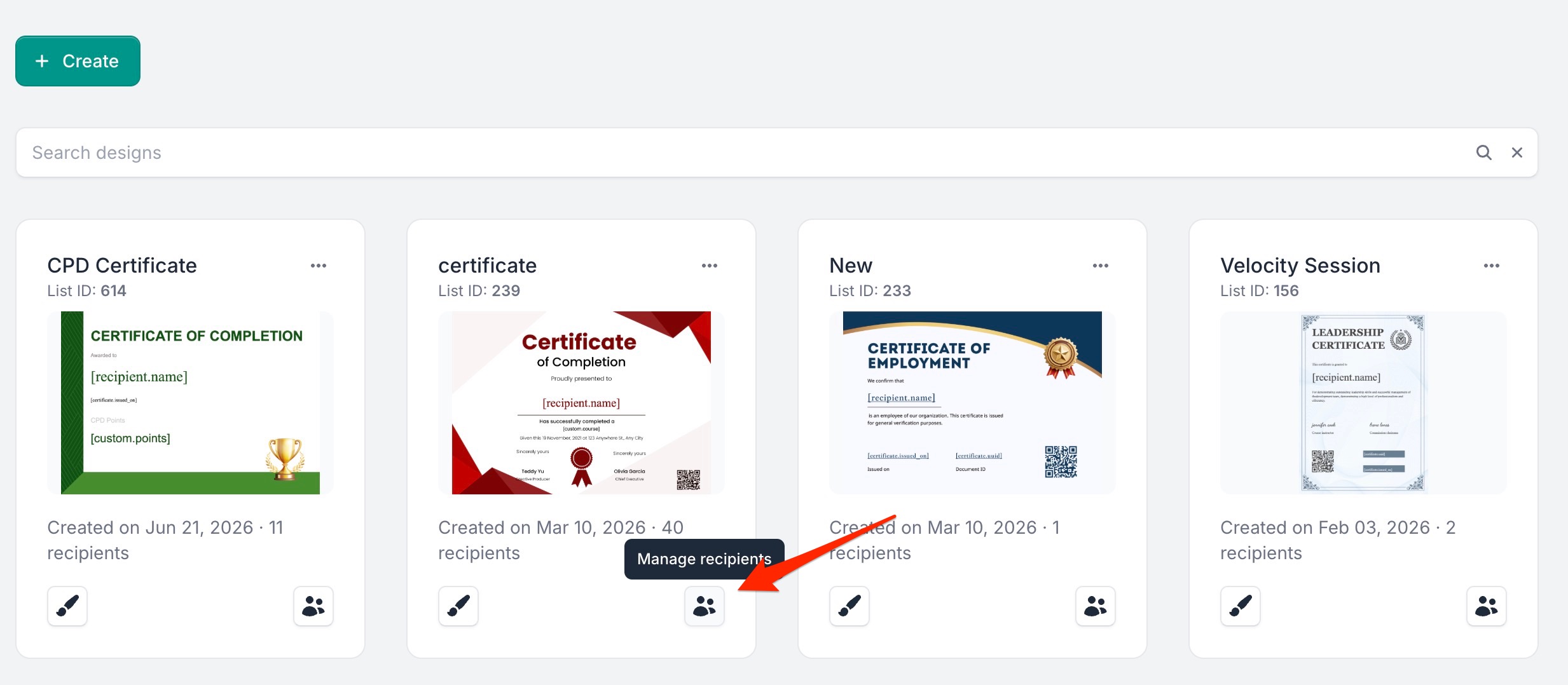
- Open the Recipients section of the template you want to use for your event.
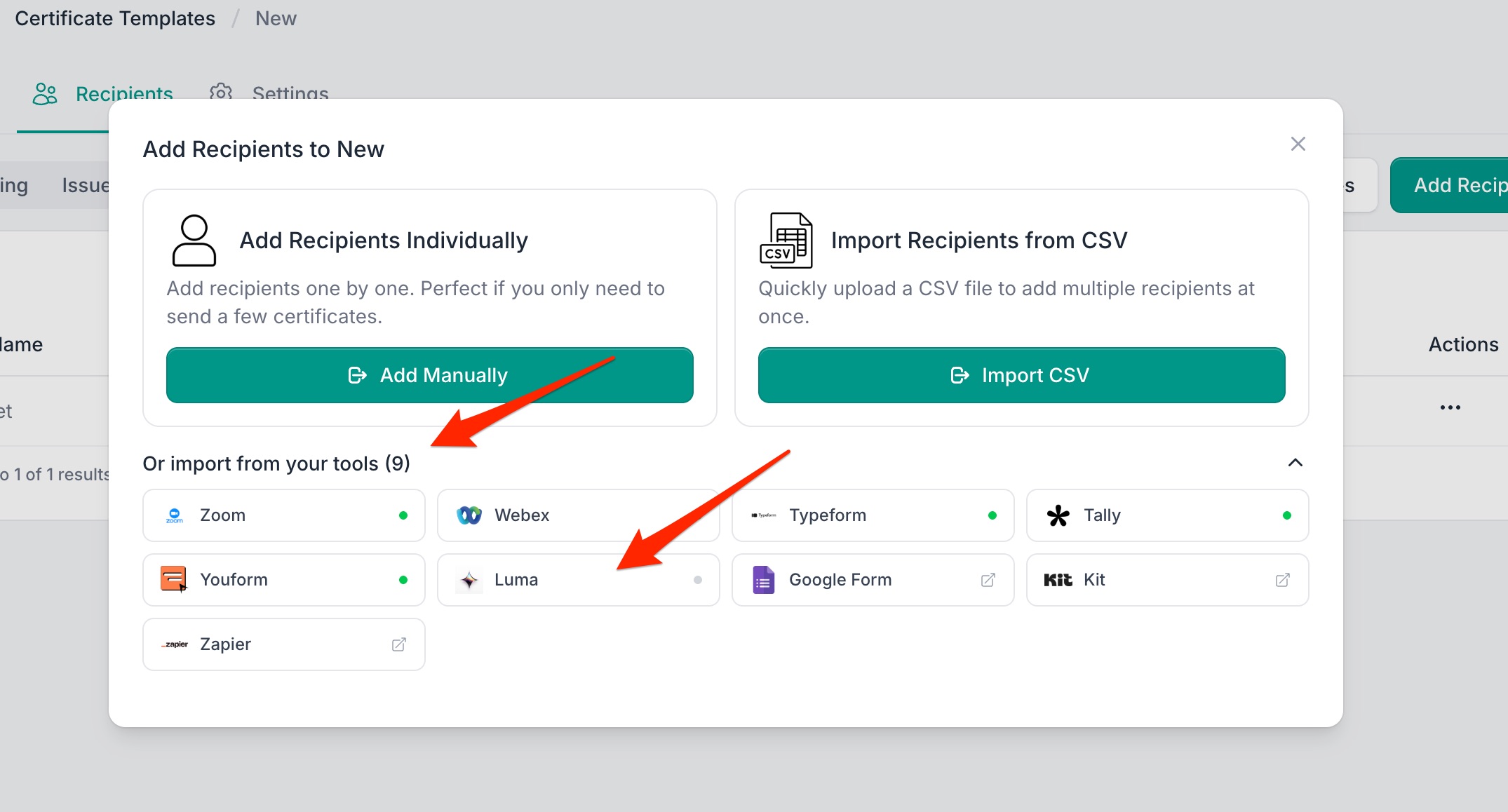
- Click Add Recipients and select import from your tools, then choose Luma.
- Select the event you want to import guests from and click Preview Guests.
- Review the guest list. Each guest shows their name, email, approval status, and registration date. Use the filter to select only approved guests, or check and uncheck guests individually.
- If your guests answered registration questions, map them onto your certificate's custom
fields using the dropdowns — for example, map a "Company" question to a
[custom.company]placeholder on your design. - Click Import and confirm. The selected guests are added to your certificate list as draft recipients.
Guests are de-duplicated by email address, so you can safely re-import an event after new registrations come in — only new guests are added.
3. Issuing Certificates to Guests
- After importing, you'll land on the Recipients page with your guests listed as drafts.
- Review the recipients and their custom field values.
- Issue certificates individually, or use the bulk actions to issue to everyone at once. Certificates are generated and emailed automatically.
4. How to Disconnect Your Luma Account
- In CertFusion, go to Manage Integrations and click the Disconnect button next to Luma. This immediately removes your stored API key.
- You can also revoke the API key directly in your Luma calendar's developer settings if needed.
Disconnecting stops CertFusion from accessing your Luma data, but existing recipients and certificates remain intact. You can reconnect at any time by following the connection steps above.
5. Troubleshooting
Connection Issues
- Verify your API key is correct and was copied in full from Luma's developer settings
- Ensure your Luma subscription includes API access (Luma Plus is required)
- Remember that each API key is scoped to one calendar — connect the calendar that hosts your events
Events Not Showing
- Use the refresh button to reload your events if you created an event recently
- Check that the event belongs to the calendar your API key is scoped to
Missing Guests
- Guests without an email address are skipped during import
- Duplicate email addresses are only imported once
- Re-run the import after new registrations — only new guests are added
Field Mapping Problems
- Registration questions only appear if at least one guest has answered them
- Make sure custom field names match between your certificate template and the mapping
- Add
[custom.your_field]placeholders to your design first, then return to the import page to map registration answers onto them
Need help? Reach us from our support page.