 +
CertFusion
+
CertFusion
How to Send Certificates with Claude AI
Add CertFusion as a custom connector in Claude's settings using the MCP URL
https://certfusion.com/mcp, authorize it with
OAuth, then ask Claude in plain English — for example, "add David to the Online Webinar list, then
issue the certificate." Claude handles the rest through CertFusion's tools.
Watch: connector setup to issued certificate in about two minutes
Step-by-step guide
Certificate admin is repetitive by design: export a list, upload it, click issue, repeat. With CertFusion's MCP server, you can hand that entire loop to Claude and run it from a chat window. In this guide you'll connect the two, then add a recipient, issue a real certificate, and check your quota — using nothing but prompts.
Prerequisites
You'll need a CertFusion account with at least one certificate template (new to CertFusion? See the knowledge base for creating your first design), the Claude desktop app (or claude.ai) with connector support, and about five minutes.
Step 1: Open Claude's Settings
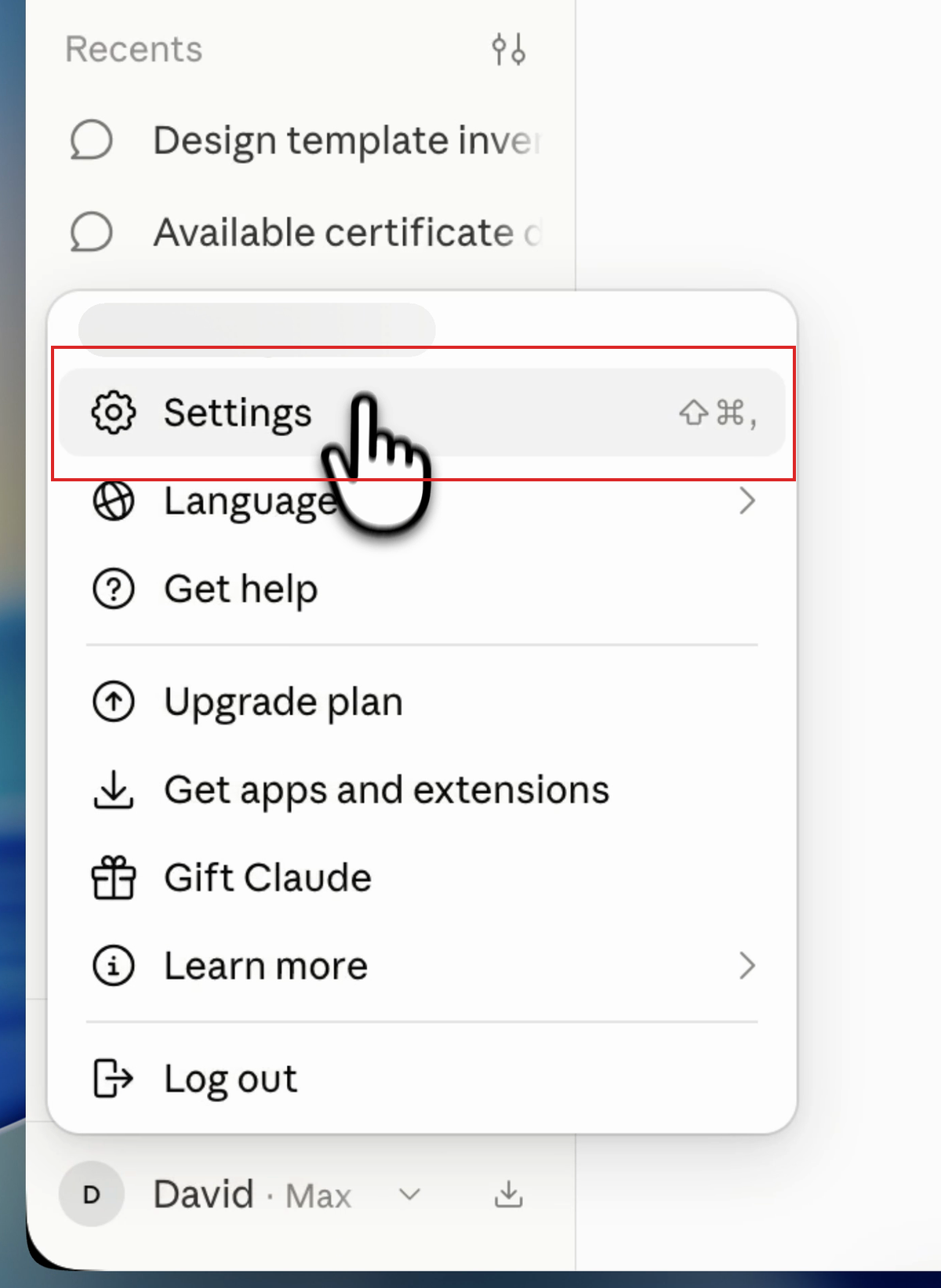
In the Claude desktop app, click your profile name at the bottom left and choose Settings.
Step 2: Go to Connectors
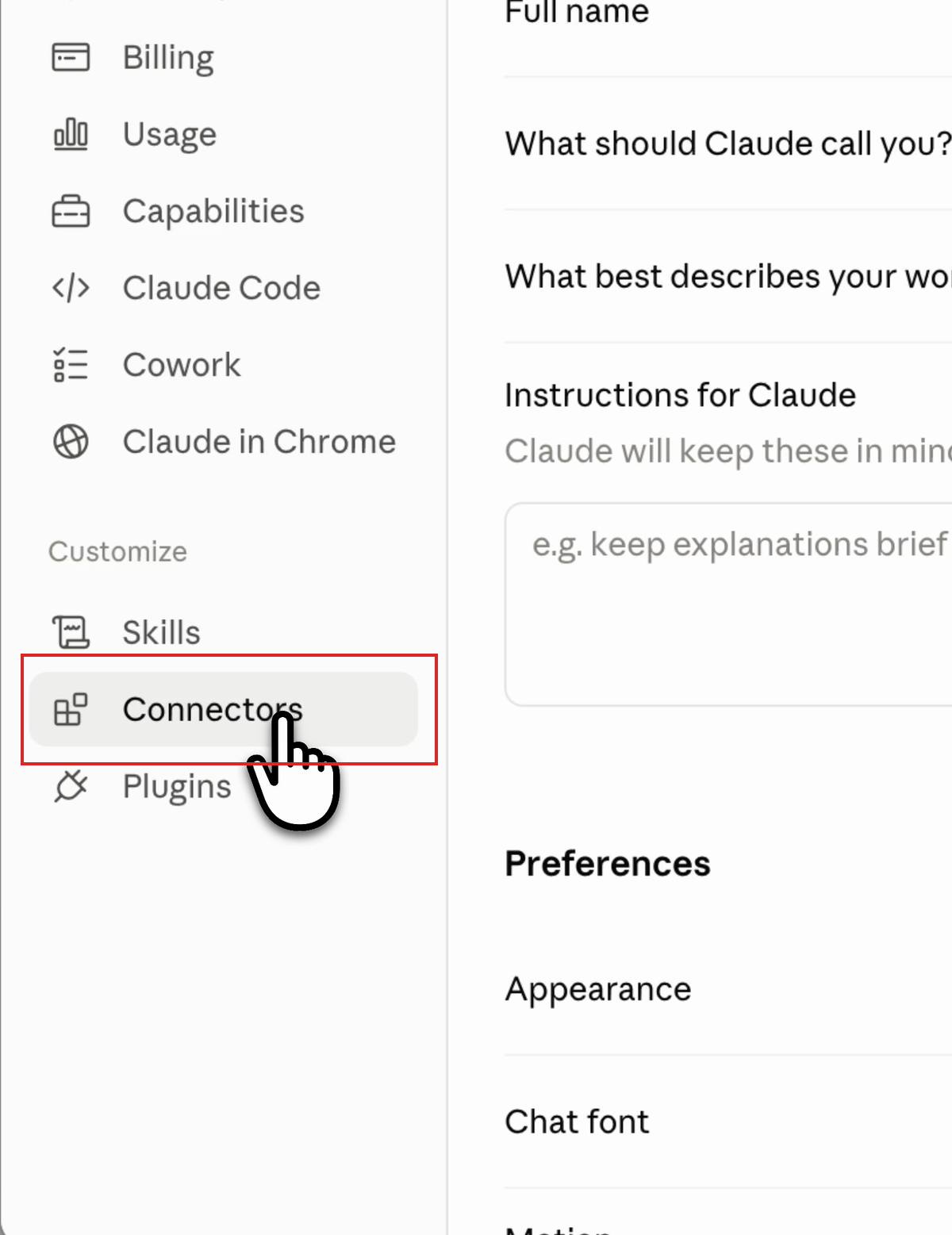
In the settings sidebar, scroll to the Customize section and select Connectors.
Step 3: Add a Custom Connector
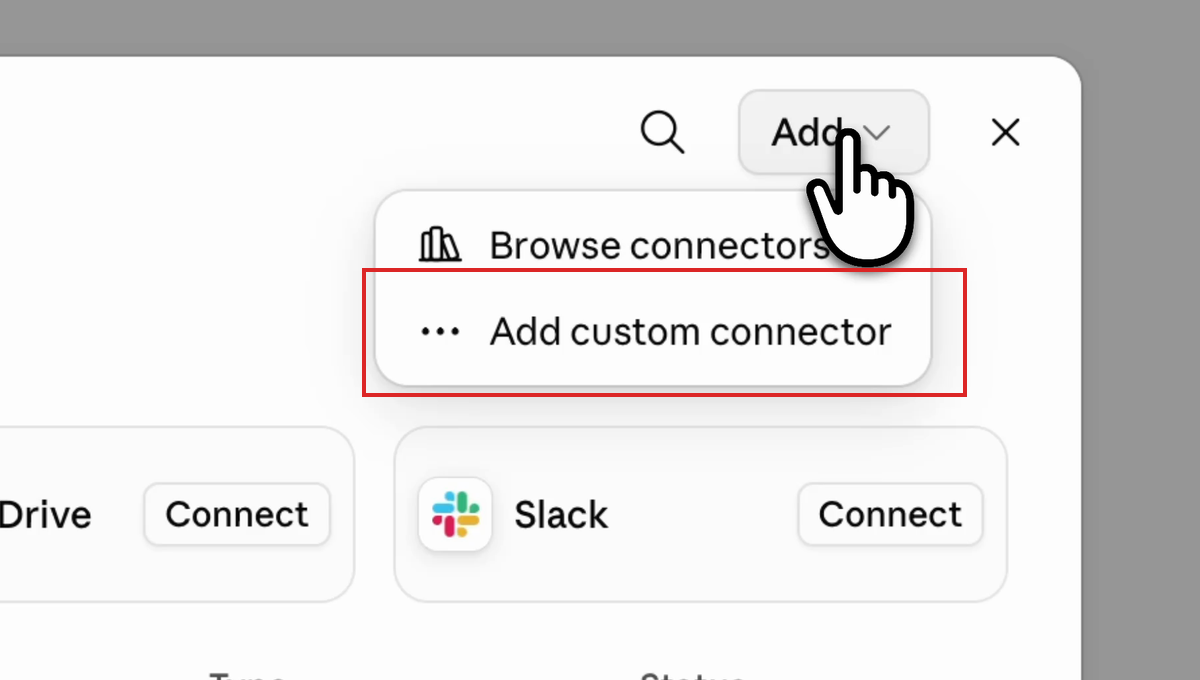
Click Add at the top right of the Connectors panel, then choose Add custom connector.
Step 4: Enter the CertFusion MCP URL
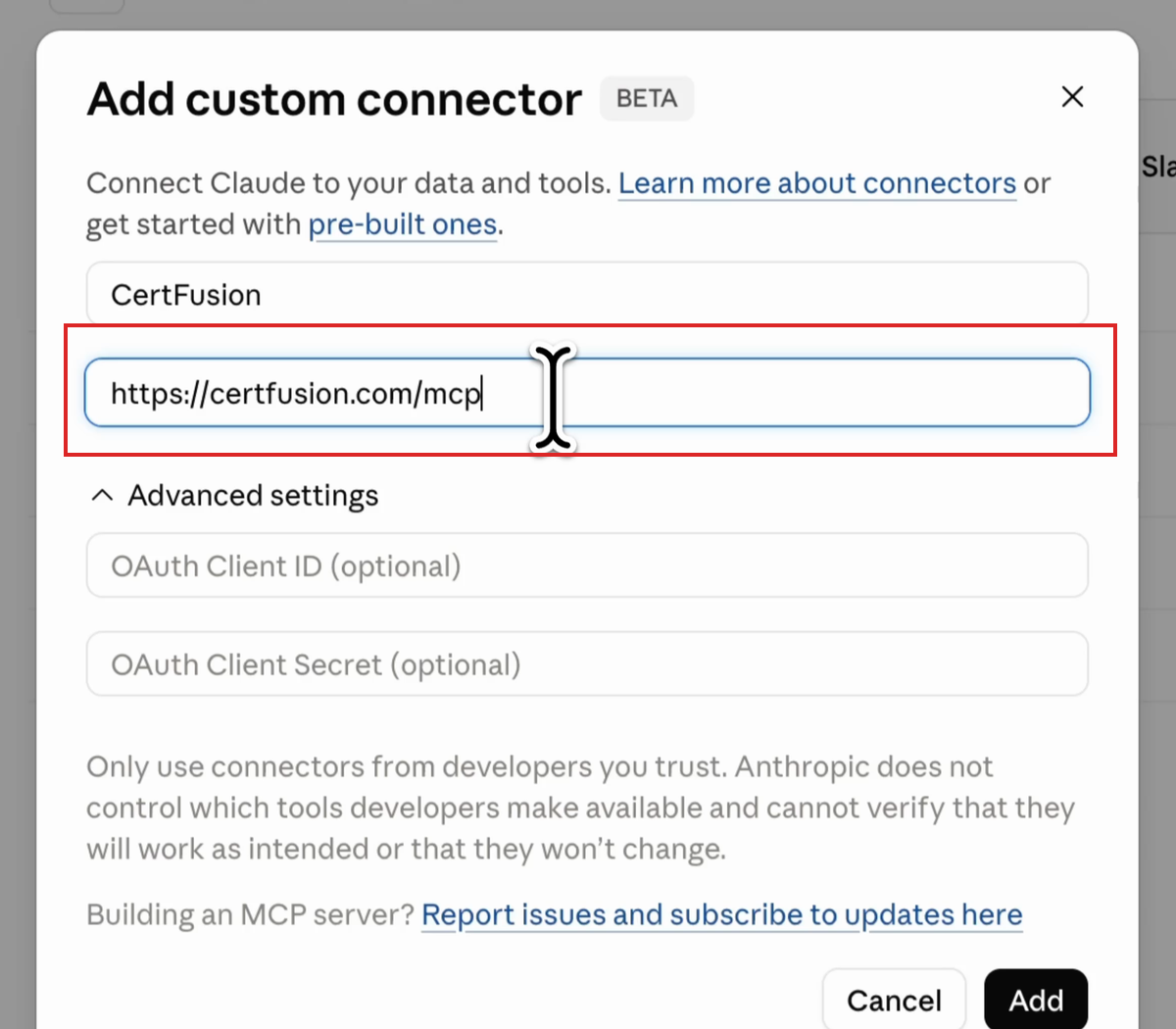
Name the connector CertFusion and enter the remote MCP server URL:
https://certfusion.com/mcpLeave the advanced OAuth fields empty — CertFusion handles authentication for you. Click Add.
Step 5: Connect and Authorize
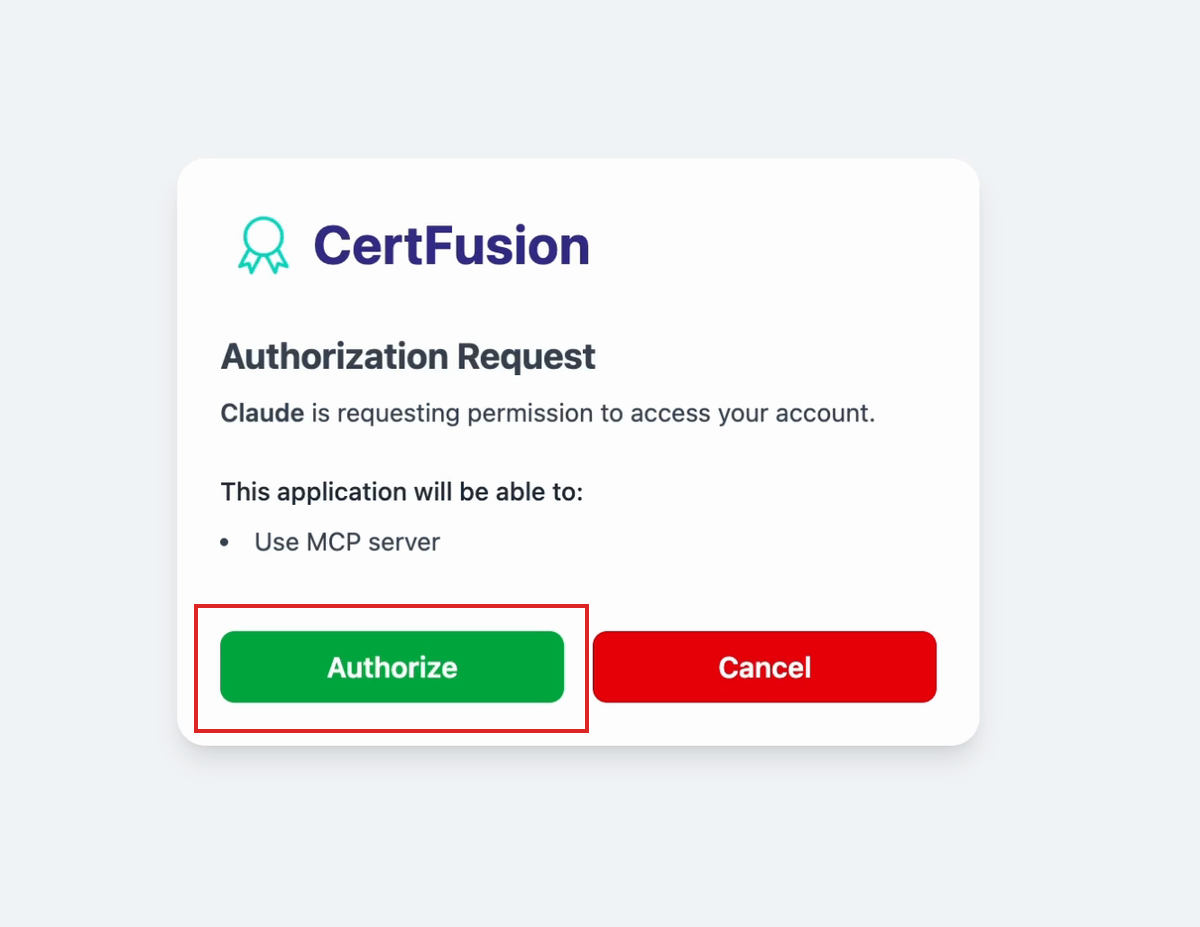
Click Connect on the new CertFusion connector. A CertFusion authorization page opens; click Authorize to grant Claude access to your account.
Step 6: Review Tool Permissions
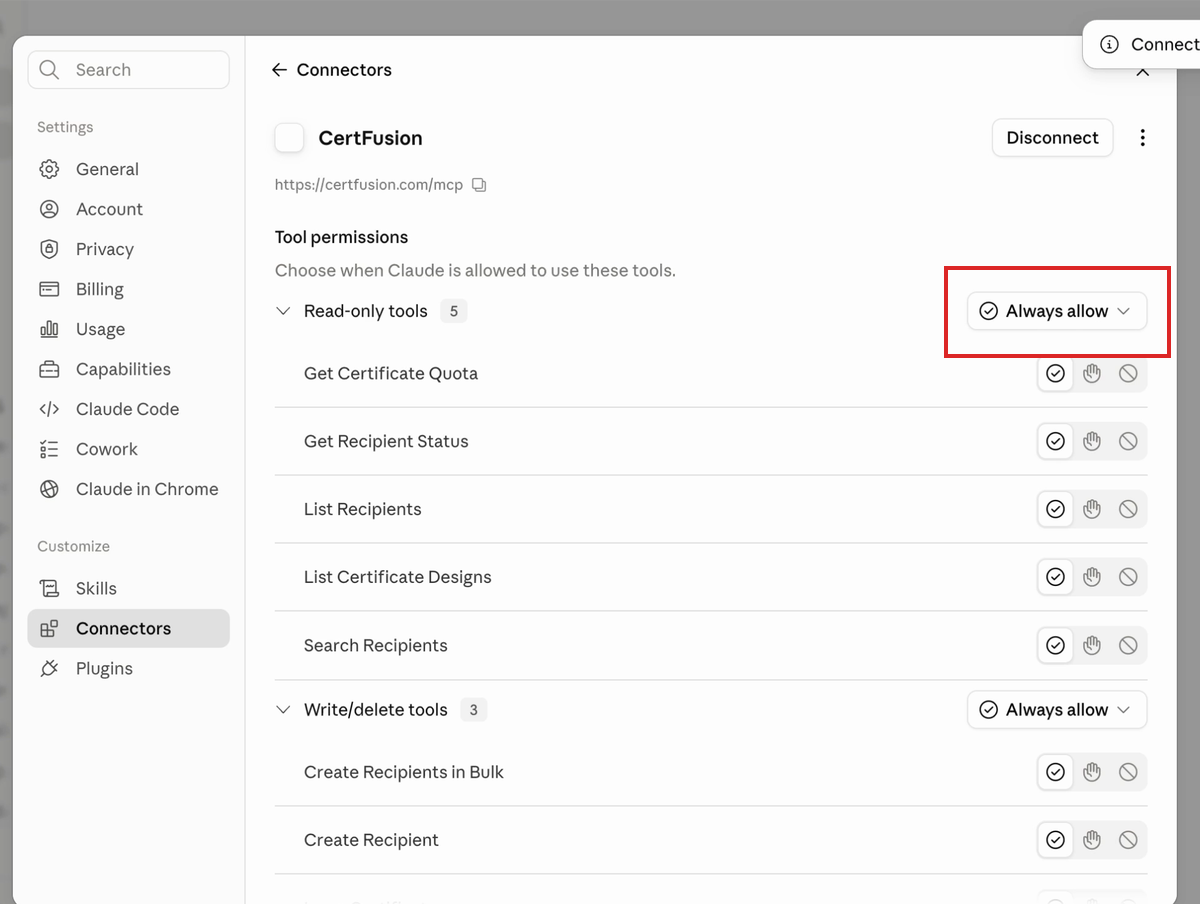
Back in Claude, you're connected. You can see exactly which CertFusion tools Claude may use — read-only tools like Get Certificate Quota and List Certificate Designs, and write tools like Create Recipient. Set the ones you trust to Always allow.
Step 7: Ask Claude About Your Templates
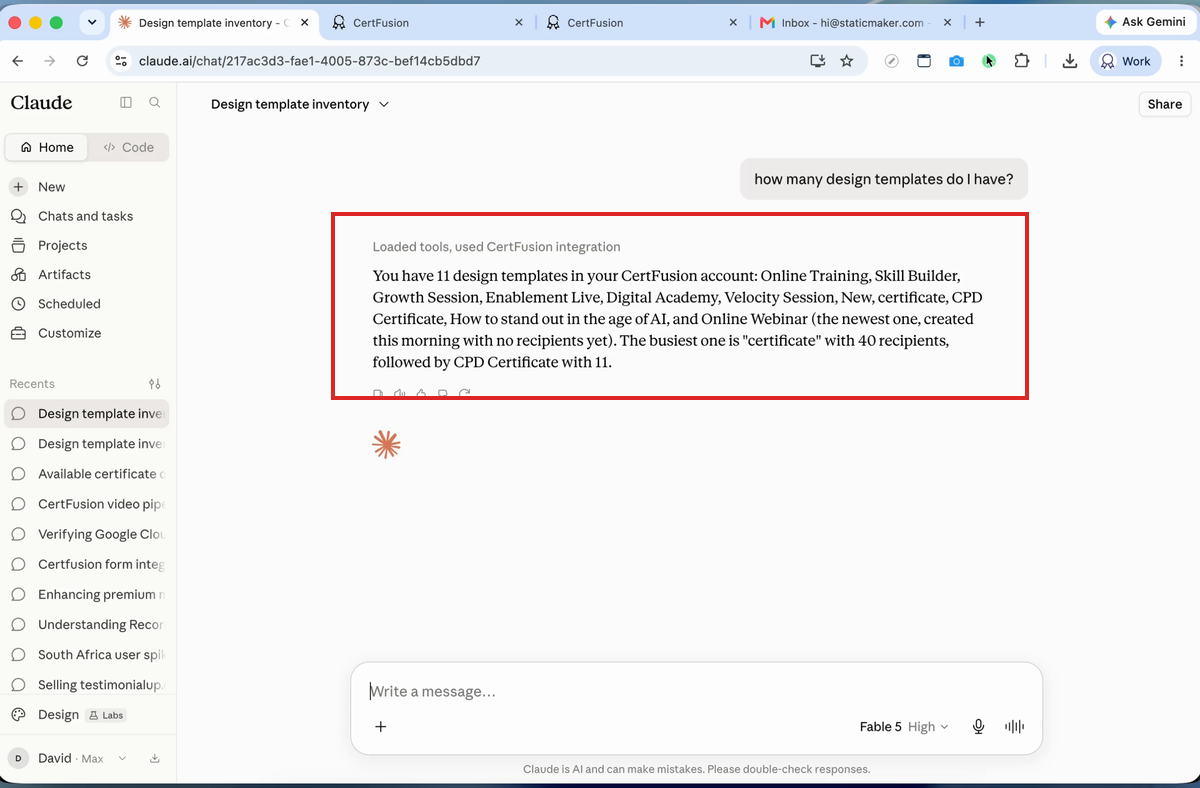
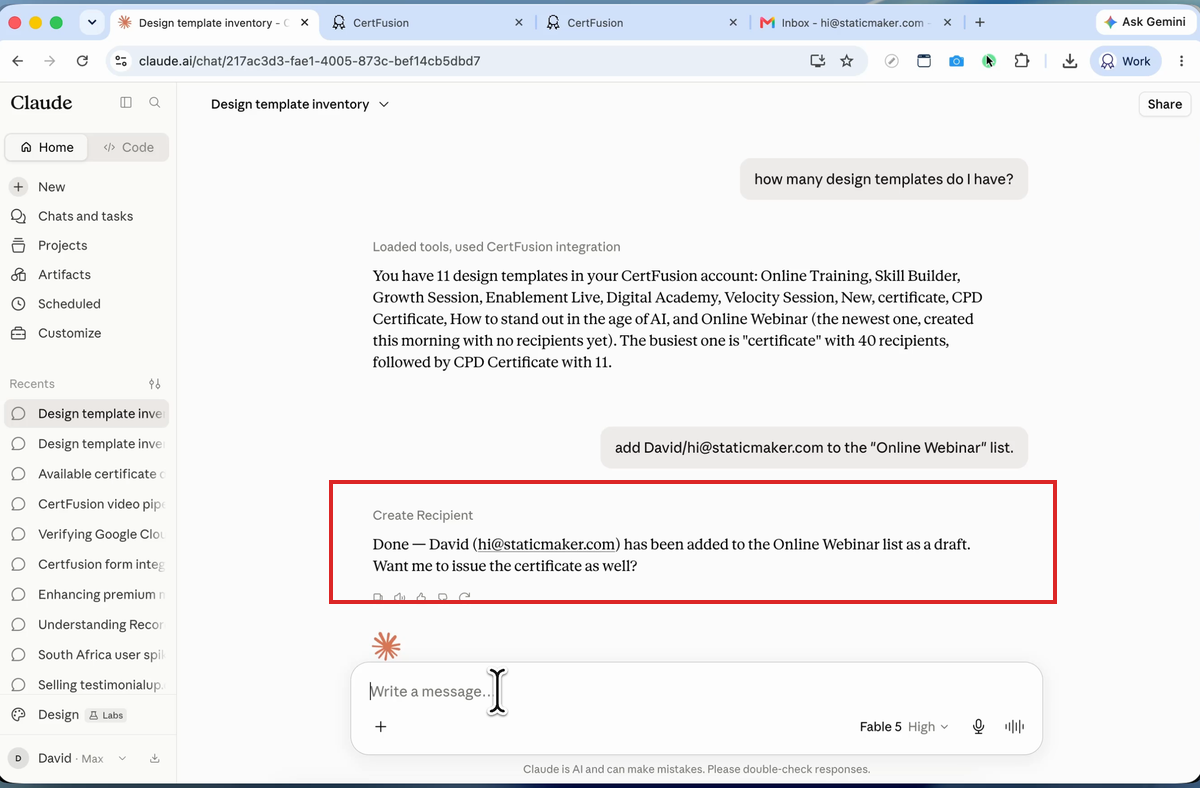
Start a new chat and try a read-only question: "how many design templates do I have?" Claude calls the CertFusion integration and answers with live account data — in this case, 11 templates, including which one is busiest.
Step 8: Add a Recipient in Plain English
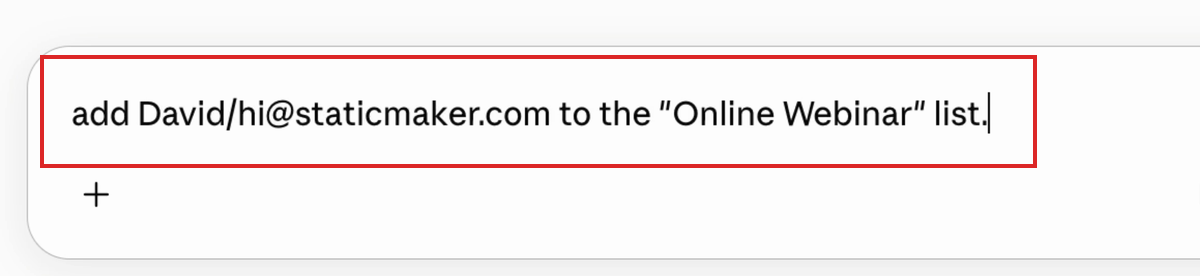
Now the real workflow. Type a prompt like:
add David/hi@staticmaker.com to the "Online Webinar" list.No forms, no CSV uploads.
Claude creates the recipient as a draft and asks whether you want to issue the certificate right away.
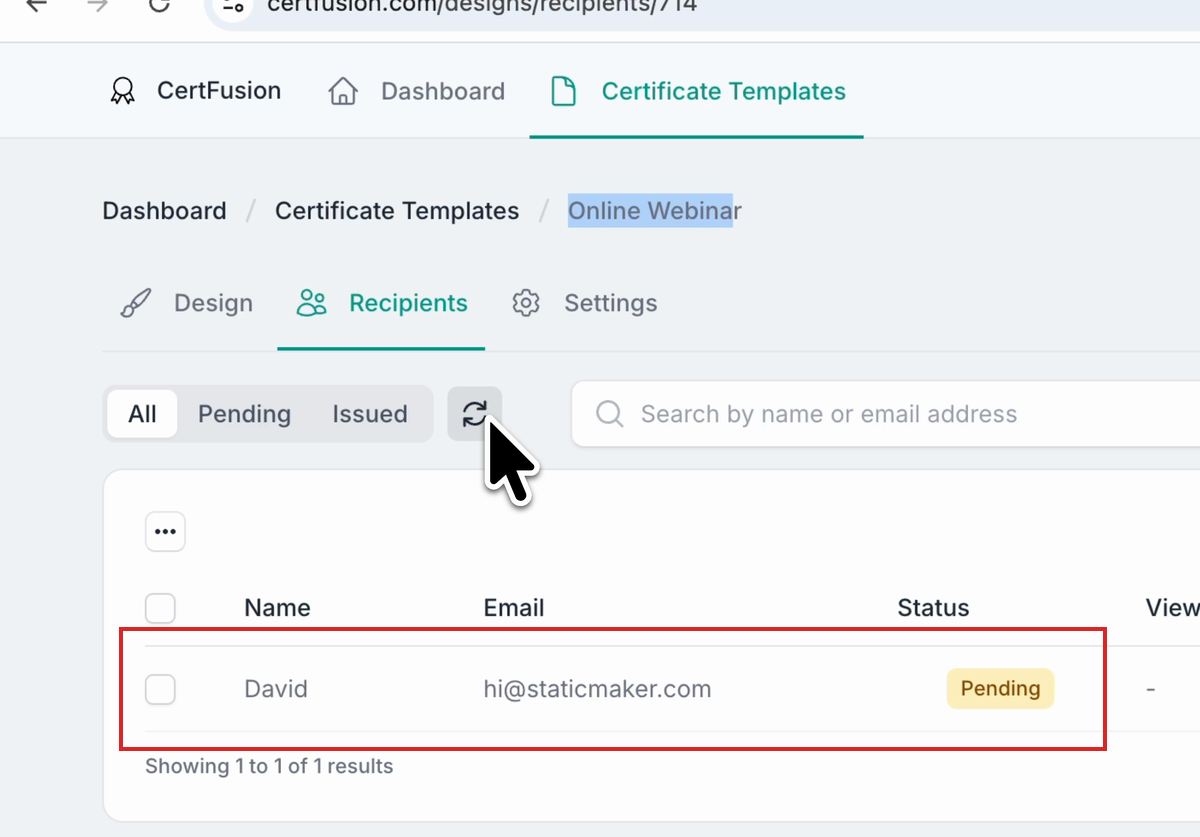
You can verify in the CertFusion dashboard — the recipient appears under the template's Recipients tab with a Pending status.
Step 9: Issue the Certificate with One Reply
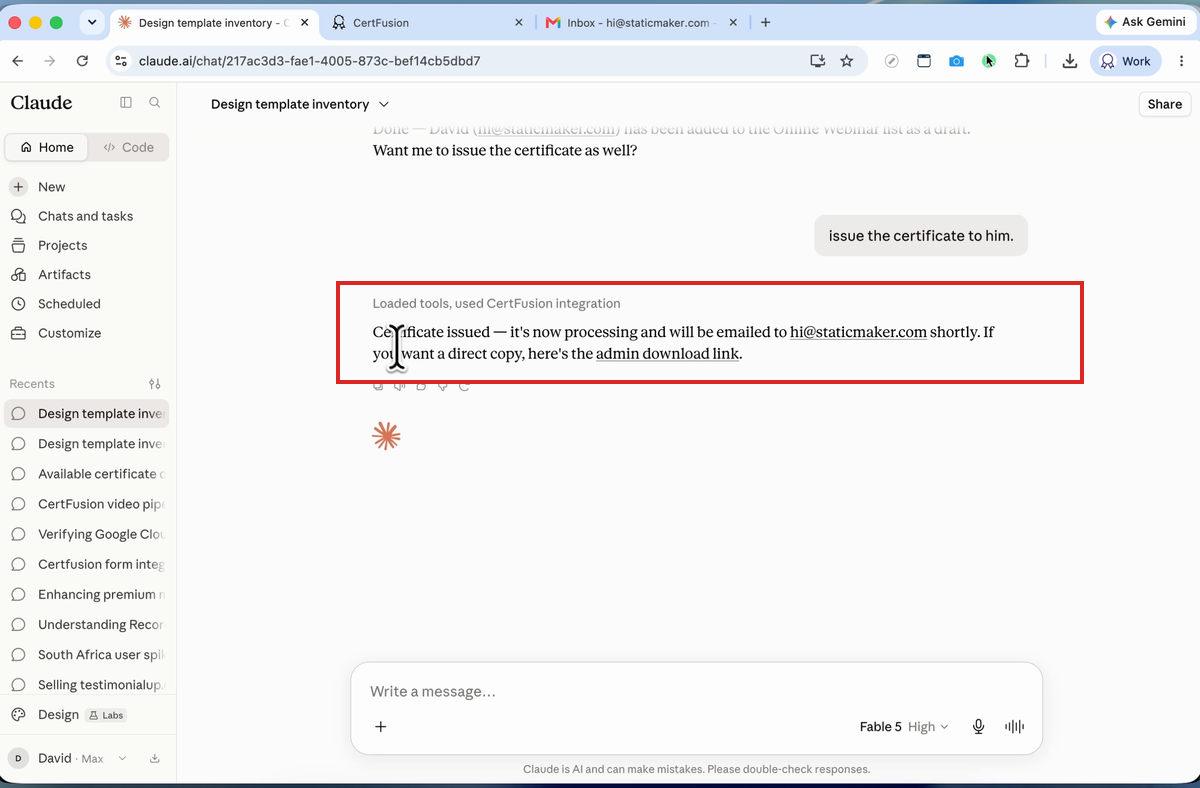
Reply: "issue the certificate to him." Claude issues it, the certificate is emailed to the recipient automatically, and you get an admin download link.
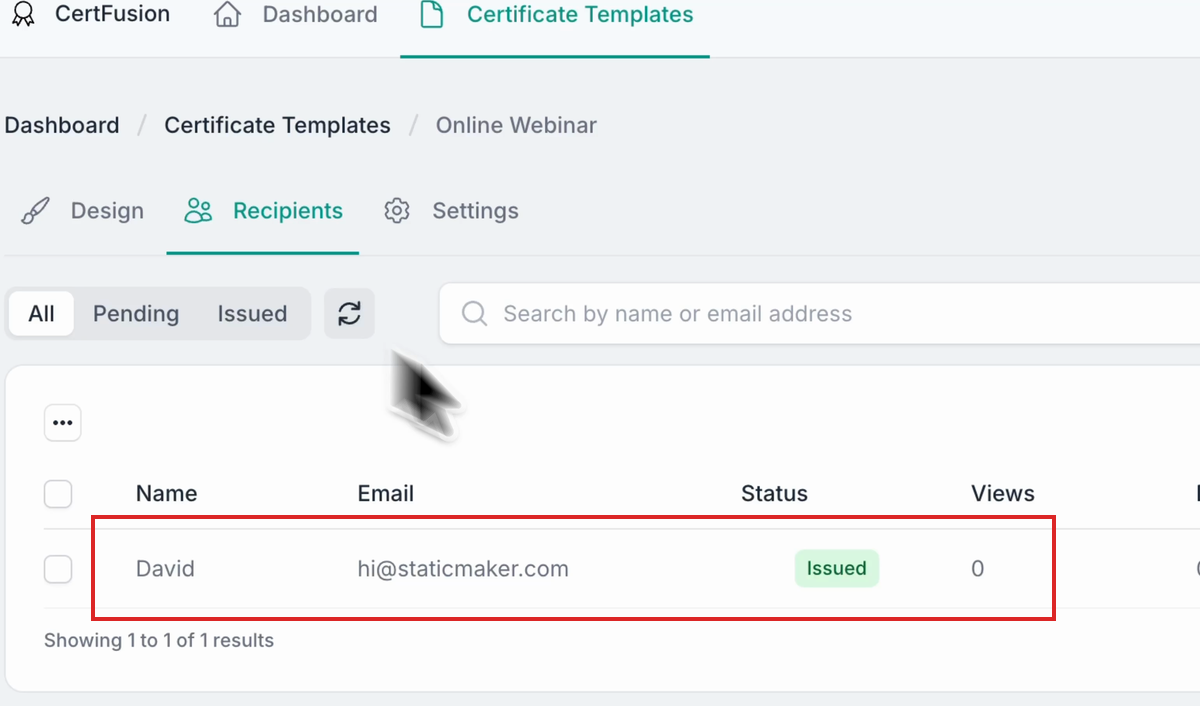
Refresh the dashboard and the status flips from Pending to Issued.
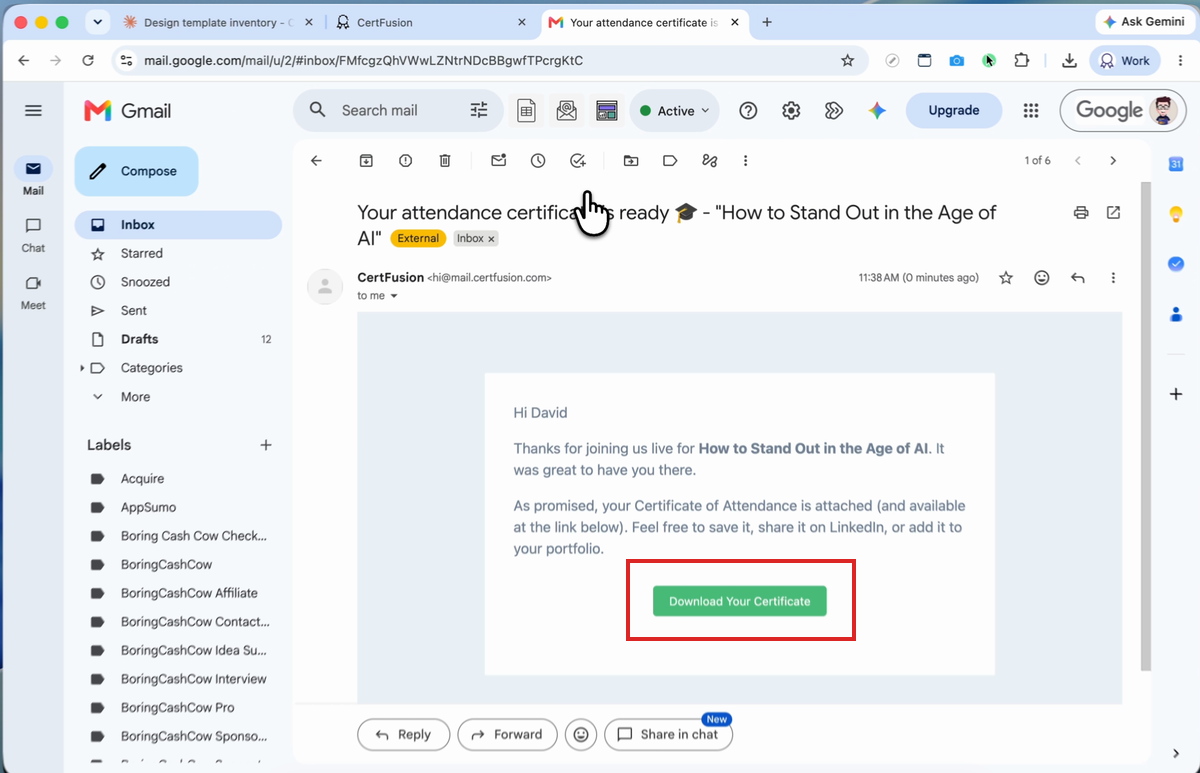
Step 10: The Recipient Gets a Verified Certificate
The email lands within moments, with a download button.
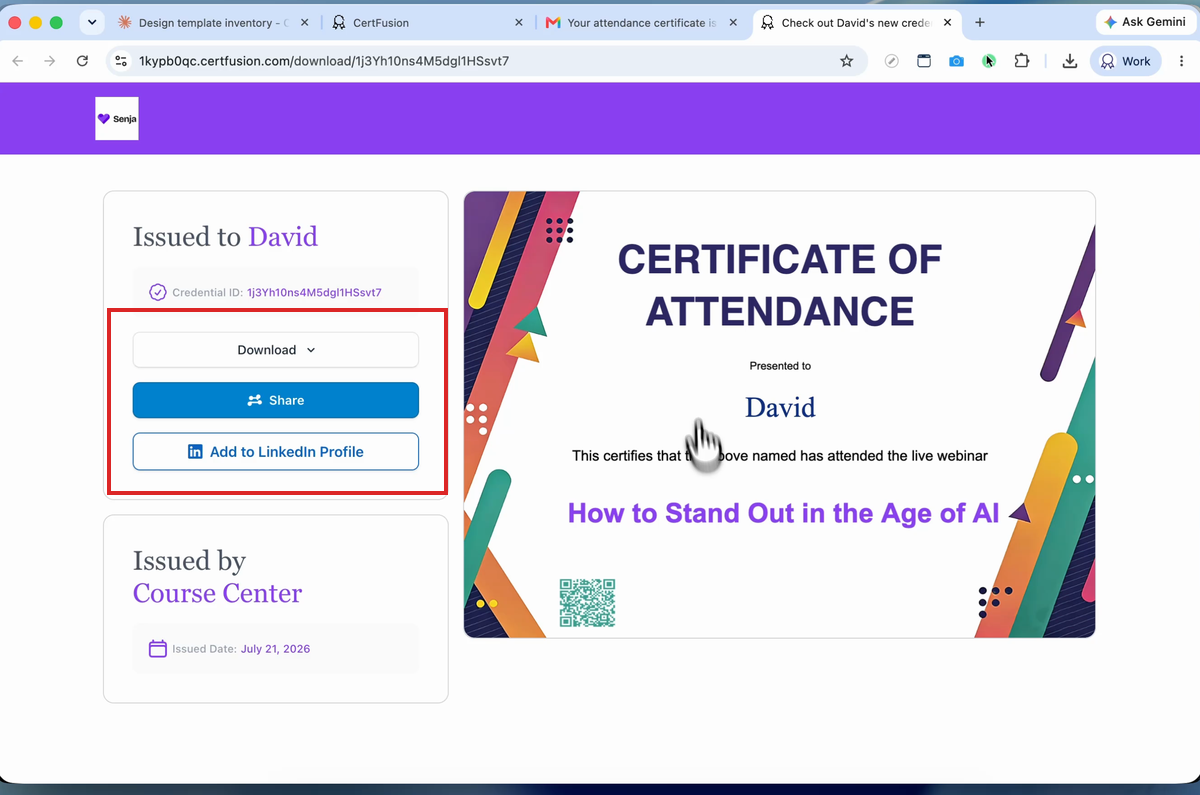
The certificate page gives the recipient a download, a share button, an Add to LinkedIn option, and a QR code for verification.
Bonus: Check Your Quota from Chat
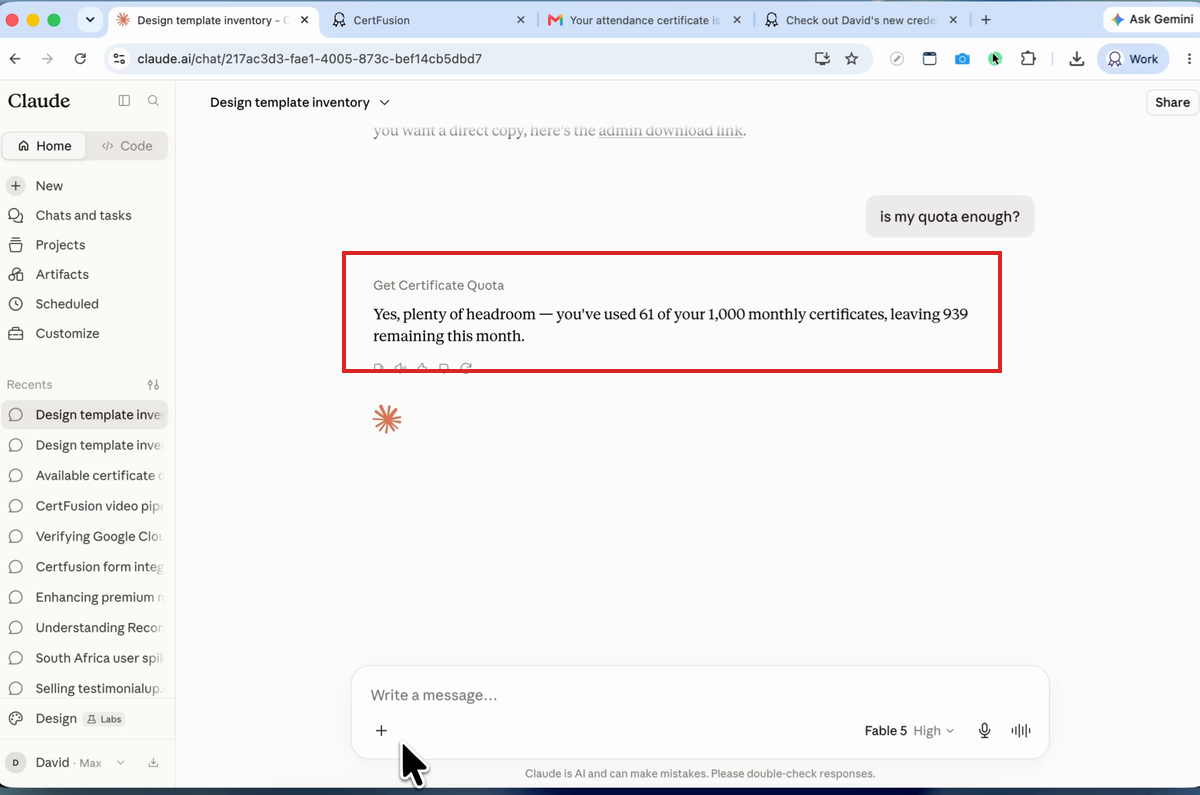
Ask "is my quota enough?" — Claude calls the quota tool and reports your live usage: 61 of 1,000 monthly certificates used, 939 remaining.
FAQ
What is the CertFusion MCP server?
It's a remote Model Context Protocol endpoint (https://certfusion.com/mcp) that
exposes CertFusion's certificate tools — listing templates, adding recipients, issuing
certificates, and checking quota — to AI assistants like Claude.
Is it safe to let Claude issue certificates?
Access is scoped to your account via OAuth, and Claude asks permission per tool. Write actions like Create Recipient can be left on "ask every time," and recipients are created as drafts, so nothing is issued without your say-so.
Can I add recipients in bulk with Claude?
Yes — the connector includes a Create Recipients in Bulk tool, so you can paste a list of names and emails into chat, or combine it with CertFusion's CSV import for large cohorts.
Does this work with ChatGPT or other AI assistants?
The MCP server works with any MCP-compatible client. This guide uses Claude, which supports remote MCP connectors natively via custom connectors. Using ChatGPT? See our ChatGPT MCP guide.
Does issuing via Claude use my normal quota?
Yes — certificates issued through the MCP count against the same monthly quota as ones issued from the dashboard, and you can check the balance any time by asking Claude.
Using ChatGPT instead? Read how to send certificates with ChatGPT, or see all AI assistants that work with CertFusion.
Need help? Reach us from our support page.