4 Simple Methods to Extract Last Name in Excel
If you have full names in a single column and want to extract just the last name, Excel provides various methods to do so. Here’s a tutorial to help you get it done.
Method 1: Using the RIGHT and FIND Functions
This method works when the full name is in the format "First Last."
Steps:
-
Identify the Column:
- Assume the full name is in Column A, starting from cell
A1.
- Assume the full name is in Column A, starting from cell
-
Insert a New Column for Last Name:
- Add a new column next to the full names.
-
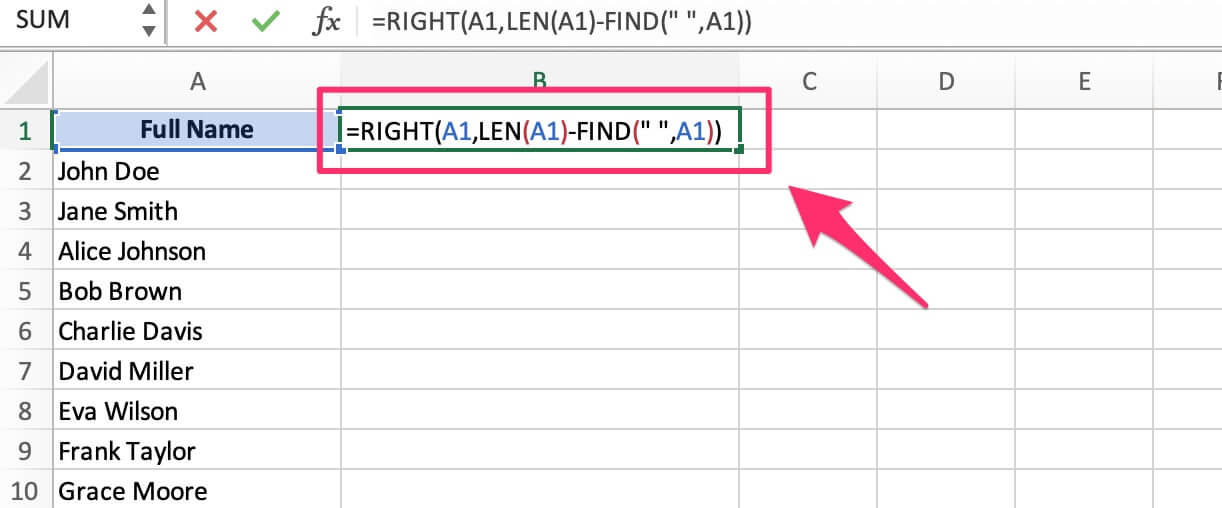
Use the Formula:
=RIGHT(A1,LEN(A1)-FIND(" ",A1))FIND(" ",A1)locates the space between the first and last names.LEN(A1)calculates the total length of the name.RIGHTextracts the text after the space.
-
Press Enter:
- The formula will extract the last name.
-
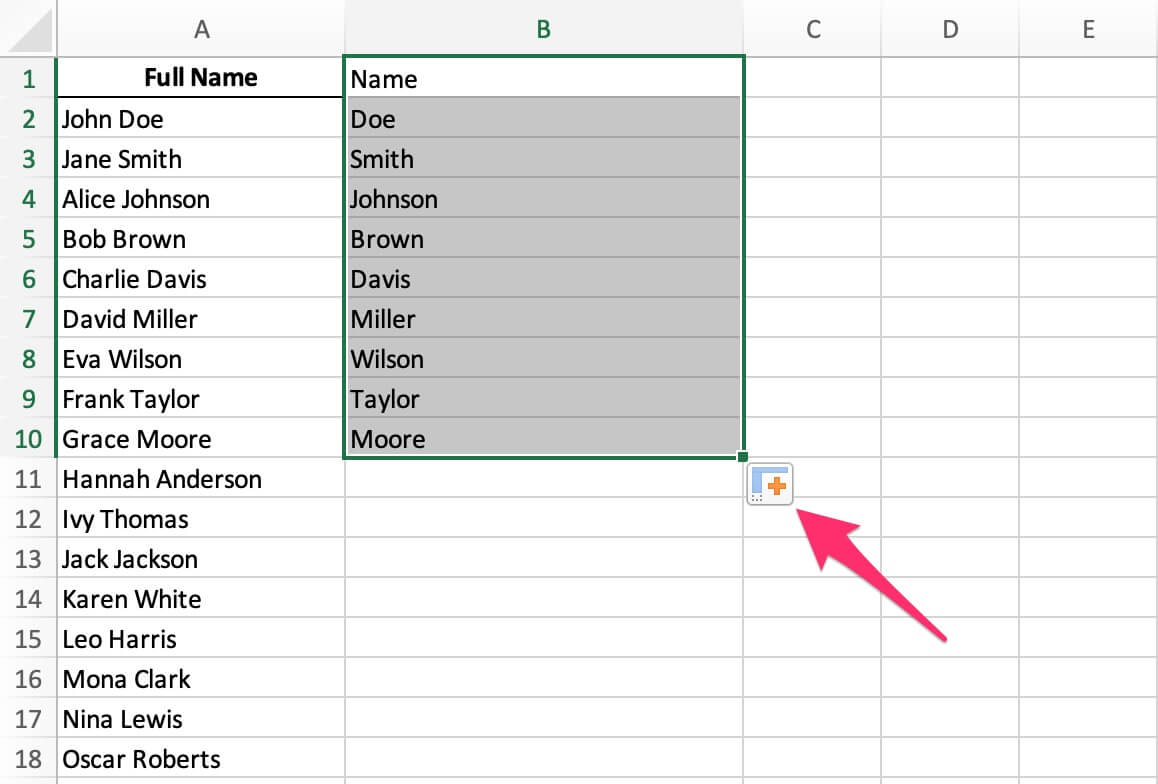
Copy the Formula Down:
- Drag the fill handle down to apply the formula to the rest of the rows.
- Drag the fill handle down to apply the formula to the rest of the rows.
Method 2: Using the TEXTAFTER Function
The TEXTAFTER function (available in Excel 365 and Excel 2021) simplifies extracting text after a specific character.
Steps:
-
Insert a New Column for Last Name:
- Add a new column next to the full names.
-
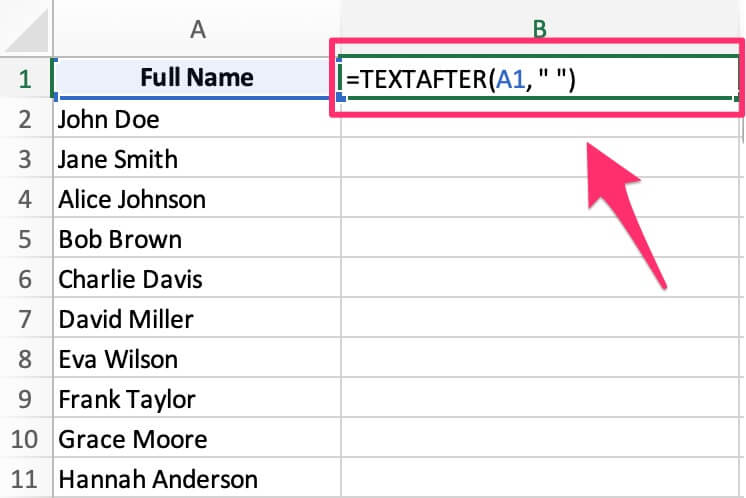
Use the Formula:
=TEXTAFTER(A1, " ")" "specifies the space as the delimiter.
-
Press Enter:
- The formula will extract the last name.
-
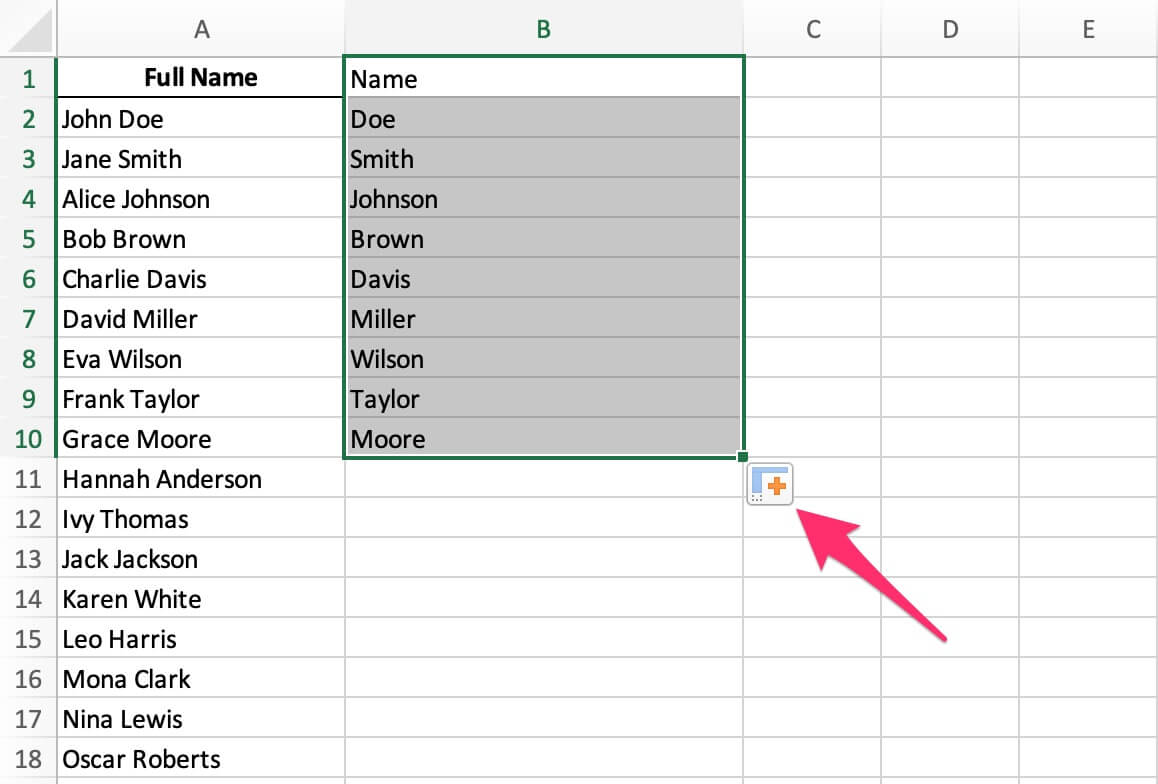
Copy the Formula Down:
- Drag the fill handle down to apply the formula to the rest of the rows.
Method 3: Using Flash Fill
Flash Fill is a quick and easy way to extract last names without formulas.
Steps:
-
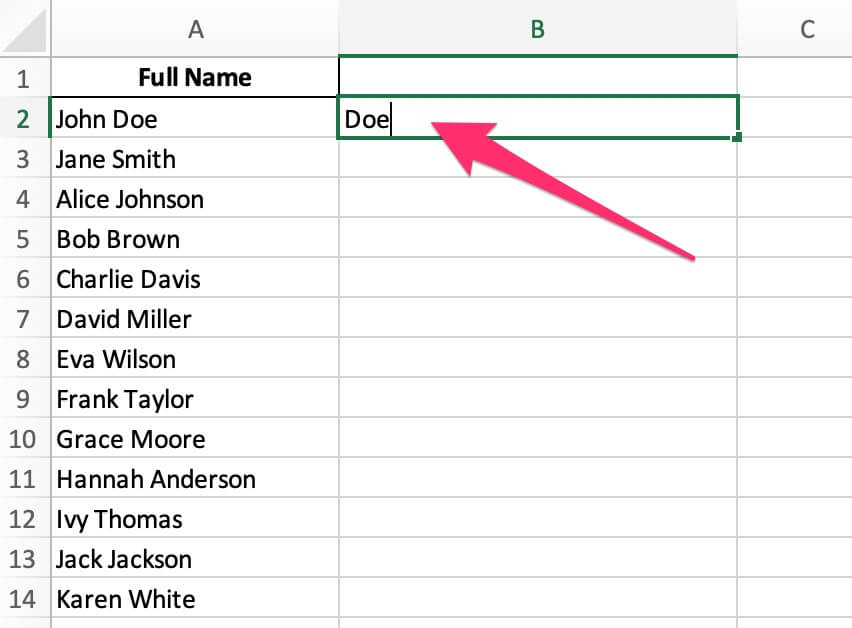
Type the Last Name:
- In a new column, manually type the last name for the first row (e.g., "Doe" for "John Doe").
-
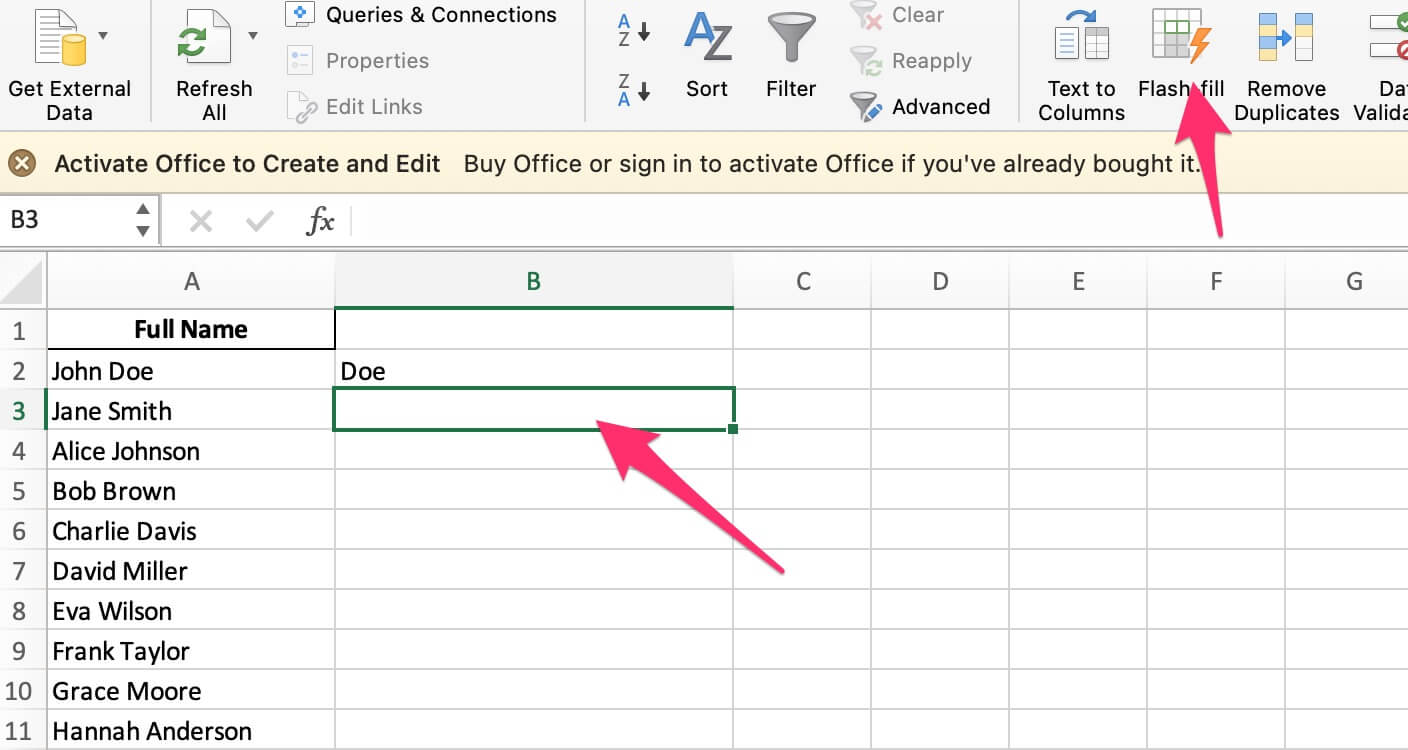
Activate Flash Fill:
- Select the next cell in the column.
- Go to Data > Flash Fill, or press Ctrl + E.
-
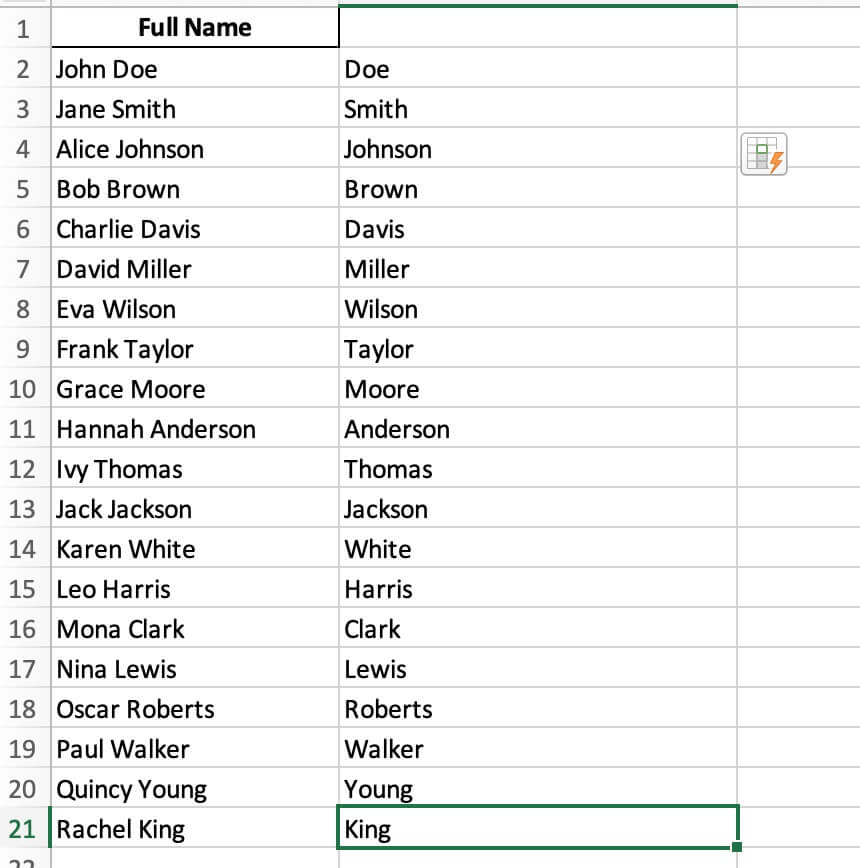
Excel Fills the Column:
- Excel will automatically extract the last names for the remaining rows.
Method 4: Using CertFusion’s Component Extractor
CertFusion also offers a versatile tool for extracting name components, including last names, from complex datasets.
Steps:
-
Access the Tool:
-
Upload Your Excel File:
- Upload the file containing full names.

- Upload the file containing full names.
-
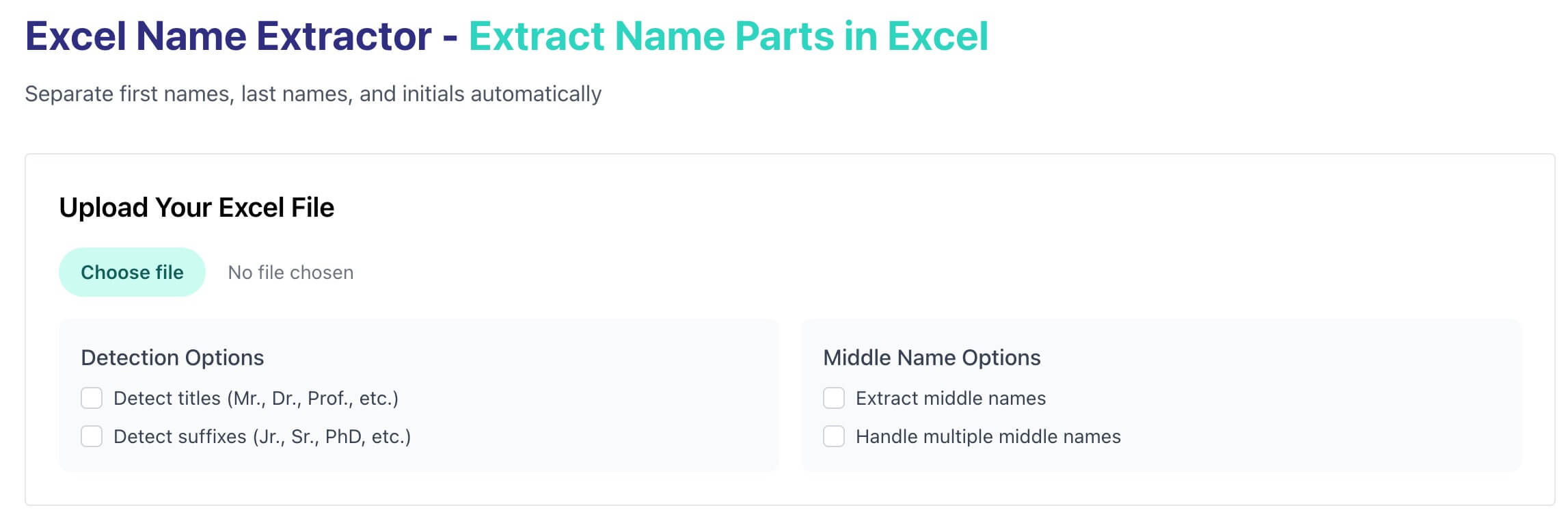
Choose Detection Options:
- Select the Detect Options to configure the tool to extract specific components like titles, middle names, or suffixes.

-
Process the Data:
- CertFusion will process the data and extract the last names into a new column.
-
Download the Result:
- Download the processed file and open it in Excel.
Tips:
- Consistent Formatting: Ensure names are consistently formatted (e.g., "First Last") for accurate results.
- Backup Your Data: Always save a copy of your data before making changes.
- For Complex Names: If names include middle names or suffixes, use CertFusion for better accuracy.
Table of Contents
Related Articles
Discover more insights and stories that might interest you